

New Employee Welcome
Welcome to M Health Fairview!
We are so glad that you are here! In preparation for your first day, we have created a list of resources to ensure you have a great first day learning about our organization, understand what is expected of you today and learn more about all of the resources M Health Fairview has to offer. You will find that information on this page.
Our New Employee Welcome program is a virtual program. If you need access to technology or internet outside of your home, please work with your leader to arrange access at your home site for your orientation from 8:00 AM – 4:00 PM CST.
Questions?
Email us at ODL@fairview.org

Join New Employee Welcome by 8:00 AM CST
New Employee Welcome is hosted through WebEx
Use this same link to join again at 12:00 PM CST
Webinar Details
We recommend logging into WebEx no later than 7:50 AM CST to ensure you can access the call.
This will be our chance to officially welcome you to M Health Fairview! We’ll provide information on what the day will look like and next steps.
We like to make this experience as personal as possible! When joining the WebEx meeting, we suggest putting your preferred name and pronouns in the ‘Name’ field.
Enjoy the music while you wait for the New Employee Welcome presentation.
Having trouble getting WebEx to work? Email ODL@fairview.org to help with technical issues.
You can access the sound for New Employee Welcome by phone and review any of our slides on our webpage. More details to come!
- Phone number: 312-535-8110
- Access/Meeting Code: 133 635 1223
Your Pre-New Employee Welcome Checklist
To ensure New Employee Welcome is an engaging experience, we have carefully crafted an agenda that will provide a variety of voices and activities. Here are a few tips to help you set yourself up for success on Monday.
- Find an optimal learning space. Try to avoid the comfy sofa or lounger chair.
- Dress for success. Remember you will be in a virtual room with co-workers.
- Feel free to get up and move around. If you find yourself losing focus, stand up and stretch or walk around the room.
- Take a break. Take advantage of break times to stay refreshed and energized.
- Ask for help. We will have staff available throughout the day to assist you with any issues. Contact: ODL@fairview.org
Click on the tabs below for additional instructions and information
 We know you are excited to get started and we can’t wait to see you Monday! Please know that we have thoughtfully crafted the day for you. We ask that you do not work ahead and wait to receive instructions during our time together.
You can use a computer, smartphone or tablet to log into the LMS. Please know you will not have access to Learning Management System (LMS) until Monday.
Need help logging into the Learning Management System? Watch: New Employee Welcome LMS Instructions (video opens in a new screen, 4 minutes).
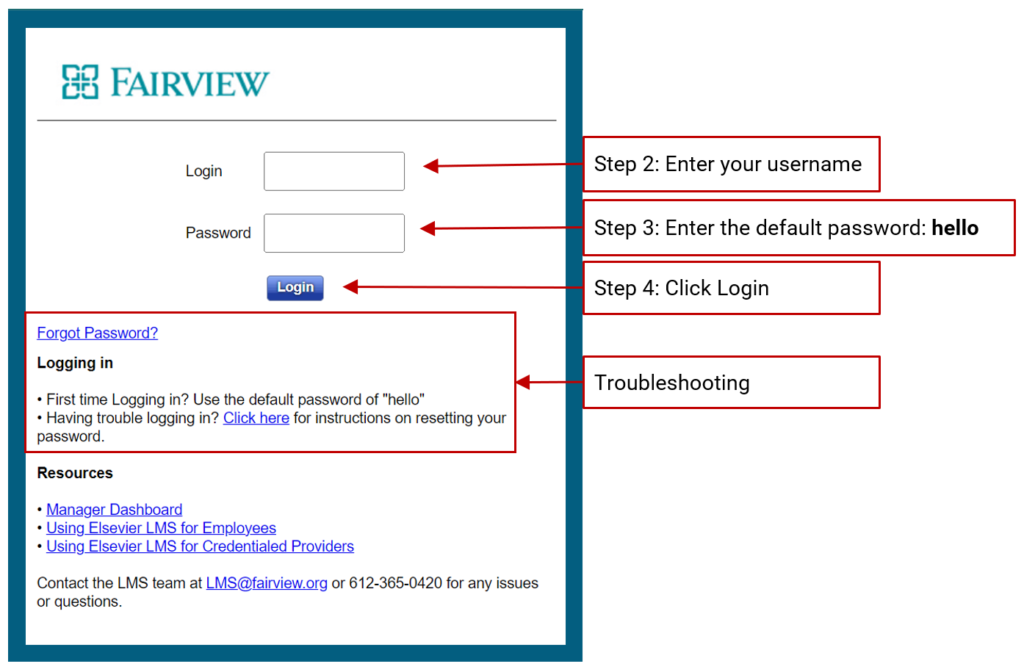
Here are the steps to log into the Learning Management System:
- Navigate to the Learning Management System Login page. We recommend you use Chrome or Safari as your web browser for the LMS.
- Enter your username in the Login field. You received an email last Thursday with your username.
- Enter the default password: hello
- Click the ‘Login‘ button.
When logging in for the first time, you will be asked to change your password.
Having trouble logging in? Try resetting your password by clicking the ‘Forgot Password?’ link, or email us at ODL@fairview.org.
Once you have logged in, you can complete the required LMS eLearning Lessons!
 You are required to complete the following eLearning Lessons by 4:00 PM CST on Monday in order to be marked as attended for New Employee Welcome and receive pay for the day.
Need help logging into the Learning Management System and accessing your eLearning lessons? Watch: New Employee Welcome LMS Instructions (video opens in a new screen, 4 minutes).
Depending on your role, you may see additional lessons assigned to you. Work with your manager to determine when you will complete any additional eLearning. During New Employee Welcome, please only work on the eLearning Lessons listed below.
Troubleshooting: If you experience any technical issues, please email ODL@fairview.org.
List of Required LMS eLearning Lessons (15 total)
- 2023 Mandatory NEW – Virtual New Employee Welcome – SYS
- 2023 Mandatory NEW – Creating an Exceptional Experience – SYS
- 2023 Mandatory NEW – Operating System – SYS
- 2023 Mandatory NEW – Community Advancement – SYS
- 2023 Mandatory Annual Education Lesson 1 – SYS
- 2023 Mandatory Annual Education Lesson 2 – SYS
- 2023 Mandatory Annual Education Lesson 3 – SYS
- 2023 Mandatory Annual Education Lesson 4 – SYS
- 2023 Mandatory Annual Education Lesson 5 – SYS
- 2023 Mandatory Annual Education Lesson 6 – SYS
- 2023 Mandatory Annual Compliance Training Lesson 1 – Code of Conduct – SYS
- 2023 Mandatory Annual Compliance Training Lesson 2 – Health Information Privacy and Security – SYS
- 2023 Mandatory Annual Compliance Training Lesson 3 – Common Compliance – SYS
- 2023 Mandatory Annual Compliance Training Lesson 4 – Compliance Hotline – SYS
- 2023 Mandatory Annual Compliance Training Lesson 5 – Conflict of Interest – SYS
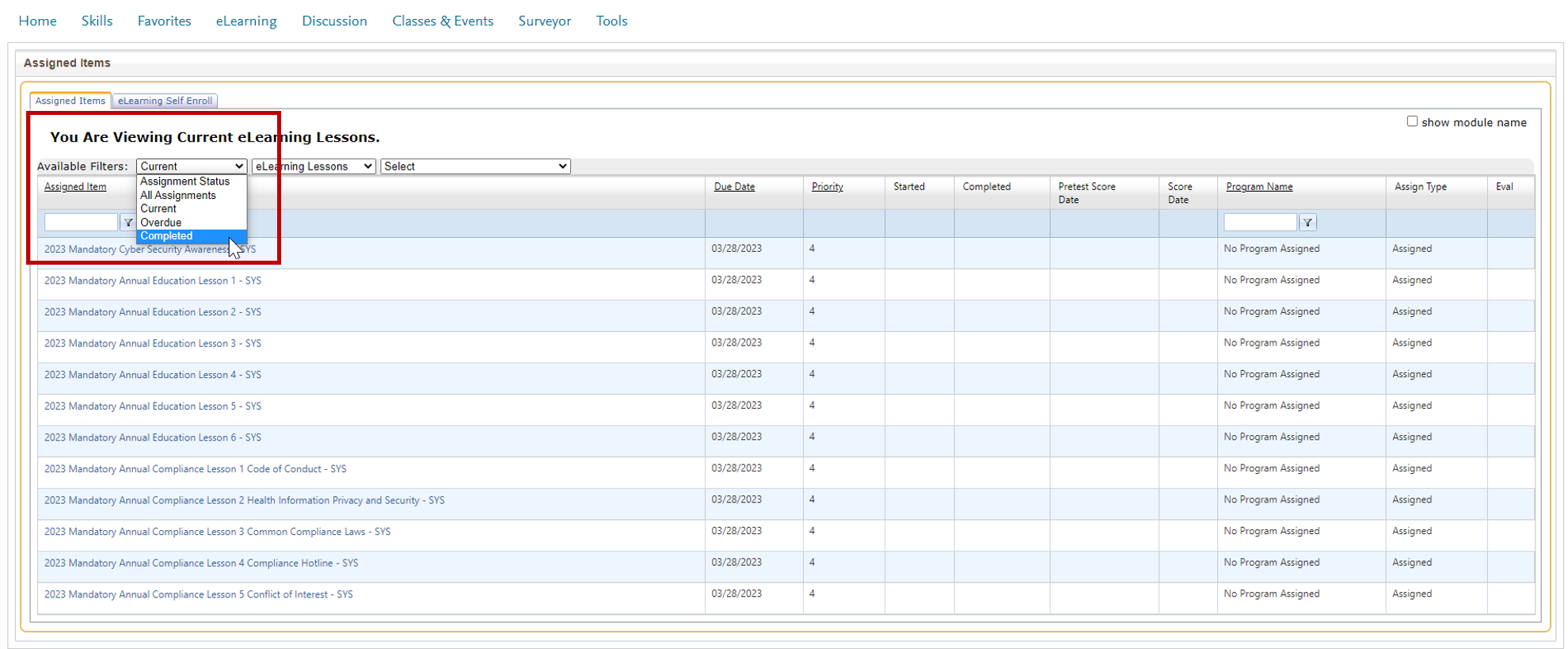
How do I know which LMS lessons I have completed?
You can view your completed lessons through the filter feature. When viewing your assigned lessons, click on the first drop-down menu next to ‘Available Filters:‘ and select ‘Completed‘ (see the image below with the drop-down outlined with a red box). You will be directed to a new screen where you will see all lessons you have completed, including your completion date and score.

Get your questions answered by reviewing the list of frequently asked questions to help you navigate your first day at Fairview.
Find guidance on payroll, logging into the Fairview system, who to connect with about Nursing Core Orientation (NCO), and more!
Where can I review information from the New Employee Welcome modules?
The below decks are from sections presented at NEW.
- Who We Are
- Executive Leader Welcome
- Connecting to Our Patients
- Our People, Our Greatest Differentiator
- Payroll
- Employer of Choice
- Diversity, Equity and Inclusion
How do I log into the Fairview System for the first time?
The first time you log into the Fairview system you will need to set your system password. Use Claim Identity to access this information. The user id you will see in this system is the same user id that you will have used to log into the Learning Management System (LMS). Your password for the Fairview system will be different than the one for the LMS.
Welcome to Claim Identity (ClaimID) – a process that will allow you to ‘claim’ your identity and accounts and establish your password. The following steps will walk you through the ClaimID process. Note: You will be asked to provide your private email address you used during your application process.
-
-
- Click here to Start the Claim Identity Process.
- All items with a red asterisks (*) are required to move forward to the next screen.
- After successfully completing ClaimID, you can manage you multi-factor authentication registration or do a password reset if needed at: https://mypassword.fairview.org.
-
Questions? Call the Technology Service Center (TSC) at 612-672-6805.
Where am I supposed to go on Day 2?
Your manager and/or recruiter should have reached out to you with direction regarding your second day and beyond. If you have not been given that direction, please connect with your manager immediately.
Will I be paid for a full day?
The Learning Management System (LMS) will track completion of the required eLearning Lessons. As long as you complete the eLearning Lessons, you will be paid for a full day for day 1. Note: You do not need to enter in your hours for day 1 orientation.
How do I connect to the Fairview network and access the Intranet?
The Fairview Intranet is our internal website where team members can access system-wide news, applications such as My Time, Lawson, the Learning Management System, etc., and employee related resources. Please use this Remote Work Setup and Troubleshooting Guide to successfully connect to the network. (NOTE: the network login password is different from the LMS password you set up).
Where can I complete my payroll information?
Lawson Employee Self Service is where as an employee you can manage your personal information. This includes setting up direct deposit, accessing your pay statements, setting up your tax withholding, and much more. To learn more, review the Payroll slides from New Employee Welcome
What do I do for Nursing Core Orientation (NCO)?
The NCO team will be the best group to assist you. Please email SNO@fairview.org and a member of their team will help.
What do I do for my Epic training?
The EPIC team will be the best group to assist you. Please email DEPT-Epic-Learning@Fairview.org and a member of their team will help.